
4.3 KiB
FrameYap
On-device voice typing for Steam Frame. Hold a button, speak, check the text, and type it into whatever app has focus. Speech recognition runs on the headset itself; nothing is sent to the cloud.
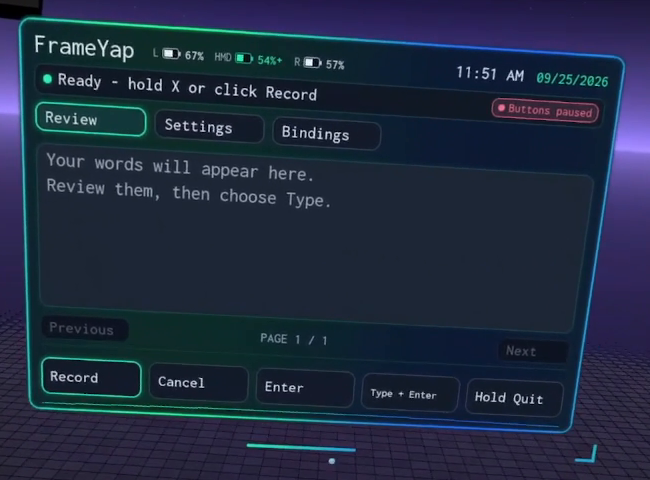
In-headset UI, captured from the video tutorial on YouTube.
Install
-
On the Frame, switch to desktop mode and open Konsole (or connect over SSH).
-
Paste this and press Enter:
curl -fsSL https://github.com/baketnk/frame-yap/releases/latest/download/install.sh | sh -
Answer y to the three questions:
- install FrameYap,
- download the speech model (about 180 MB),
- install the speech runtime (about 200 MB download, roughly 1–1.5 GB on disk).
The downloads can take a few minutes with little output; that is normal.
Everything installs into your home folder. No sudo, no compiler, no Steam store page. Prefer to read the script first? Download install.sh and open it; it is a single file.
Launch
Open FrameYap from the desktop application menu, or in the headset from your Steam library's Non-Steam section. The panel appears in front of you; drag the bar under it to move it, or the corner handle to resize.
Use it
| Button | What it does |
|---|---|
| X (right), hold | Record while held; let go to transcribe. |
| A (right) | Type the text into the focused app. With nothing to type, A presses Enter (so A, A types and submits). |
| B (right) | Cancel / discard. |
| Y (right) | Quick phrases; press again to pick the next one. |
| Left grip, double-tap | Type + Enter. |
You can also click the panel's buttons with the laser pointer. Nothing is ever typed or submitted without you pressing a button. Buttons can be remapped with Bindings on the panel.
The header shows battery levels for your controllers and headset. The Buttons paused badge means the Steam menu is open: controller buttons go to Steam, so use the pointer instead (or close the menu).
Troubleshooting
-
Panel says Unavailable, or shows an error while loading: the speech model or runtime is missing (for example, you answered n during install). Run these, then restart FrameYap:
sh ~/.local/share/frameyap/current/bin/install.sh --install-model --backend redux --yes sh ~/.local/share/frameyap/current/bin/install.sh --install-runtime --yes -
Text went to the wrong place: FrameYap types into the currently focused window. Click the target text field first.
-
Controller buttons do nothing: check for the Buttons paused badge (see above).
Privacy
Recognition runs locally with the Parakeet Redux model. The installer downloads FrameYap from GitHub, the model from Hugging Face and the Python packages (moondream, Kestrel, CPU Torch) from PyPI and PyTorch; after that, FrameYap works offline. By default the microphone stays open while FrameYap is running and idle audio is thrown away; turn on Settings → Close mic when idle to close it between recordings (it may clip the first syllable). Recordings and transcripts are not kept, unless you turn on Advanced debug, whose logs may contain speech.
Update and uninstall
- Update: run the install command again and answer y to FrameYap. Answer n to the model and runtime questions unless the release notes say they changed.
- Settings:
~/.config/frameyap/config.json(Quick phrases, theme, placement). Restart FrameYap after editing. - Uninstall:
sh ~/.local/share/frameyap/current/bin/install.sh --uninstall --unregistered. Your settings and downloaded model are kept. Delete~/.local/share/frameyapand~/.config/frameyapto remove everything.
More
- Development notes: build from source, validation status, full control details.
- Third-party components and licenses. FrameYap itself is MIT licensed.
- The release archive contains FrameYap, SDL3 and the OpenVR client library only; the speech runtime and model are downloaded on your machine, not redistributed.